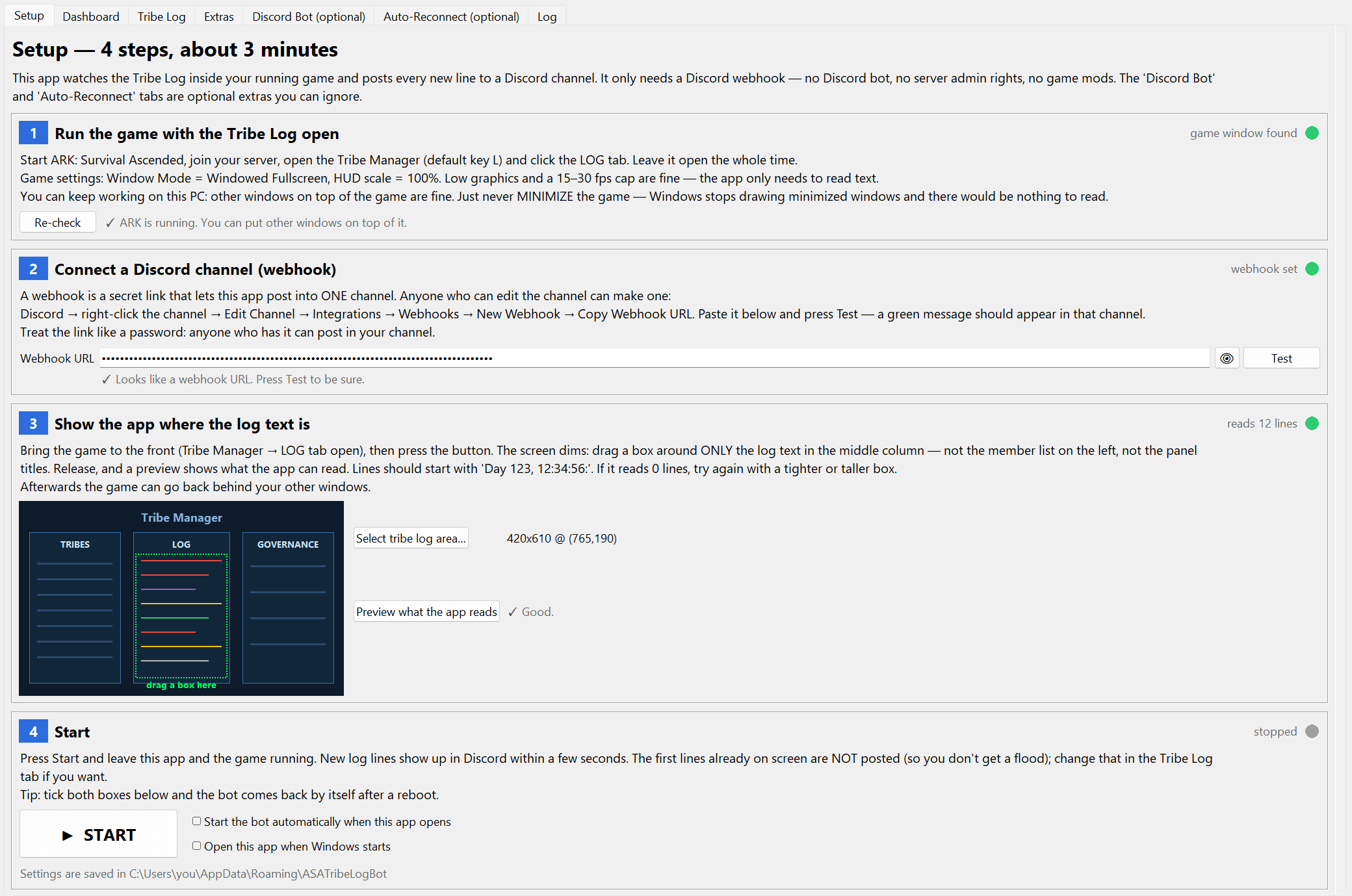
1. Install
Sign in with Discord on this site and buy a license; your account page then shows the download (ASATribeLogBot-Setup.exe) and your key. Run the installer — it installs per-user (no admin rights). Windows SmartScreen may warn because the installer is new: click More info → Run anyway.
On first start press Log in with Discord — the app finds the license tied to your Discord account, no key to type. (Pasting the key works too.) The app updates itself from then on.
2. Game settings
- Window mode: Windowed Fullscreen (borderless). Not exclusive fullscreen.
- HUD scale: 100%. Default gamma.
- Low graphics and a 15–30 fps cap are fine — the bot only reads text.
- Open the Tribe Manager (default key
L) → LOG tab. Leave it open. - Disable screen sleep / lock. Other windows can cover the game; just never minimize it.
3. Discord webhook
A webhook is a link that lets the app post into one channel. In Discord: right-click the channel → Edit Channel → Integrations → Webhooks → New Webhook → Copy Webhook URL. Paste it into Setup step 2 and press Test. Treat the link like a password.
4. Select the log area
Bring the game to the front, press Select tribe log area…. The screen dims; drag a box around only the log text in the middle column (not the member list, not the headers). A preview opens showing each line the bot can read — lines should start with Day 123, 12:34:56:. Zero lines? Draw a tighter or taller box.
5. Start
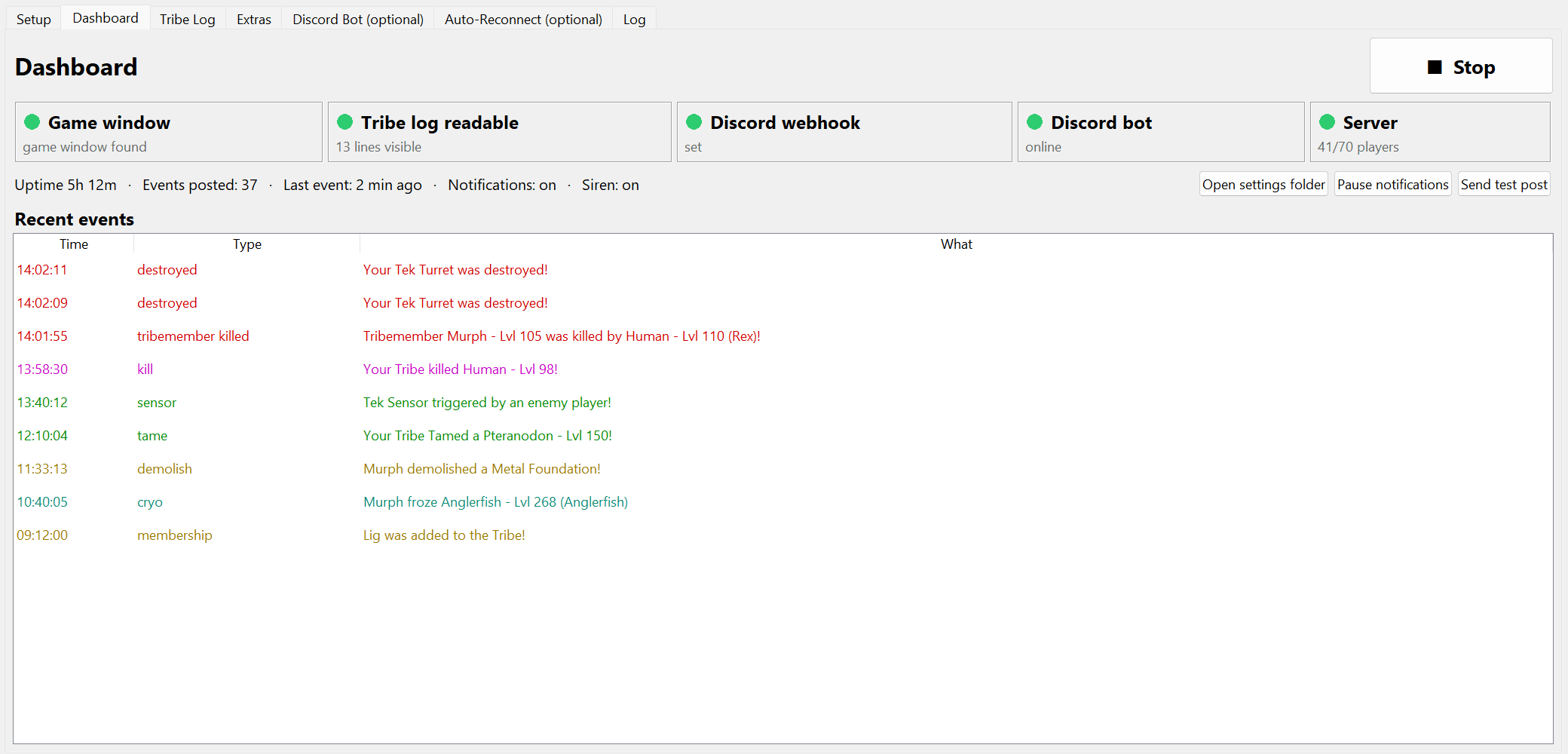
Press Start. The Dashboard shows five status tiles; all green means it's working. Lines already on screen are not posted (avoid a flood); only new ones. Tick Start automatically and Open when Windows starts so it survives reboots.
Alerts: @mentions and siren
Tribe Log tab → Ping people: paste <@USER_ID>, <@&ROLE_ID> or @here (Discord → Settings → Advanced → Developer Mode to copy IDs). Set the rule, e.g. when at least 3 Kill/Death/Sensor events within 5 minutes. The siren needs the optional Discord bot (below) and a voice channel ID.
Alert channel
Tick the → alert channel column for serious events and paste a second webhook (e.g. #raid-alerts). Everything else keeps going to the log channel.
Optional: Discord bot (commands + siren)
- discord.com/developers → New Application → Bot → Reset Token → copy into the Discord Bot tab.
- OAuth2 → URL Generator → scopes
bot+applications.commands; permissions Send Messages, Attach Files, Connect, Speak → open the URL and add it to your server. - Paste your server ID (Developer Mode → right-click server → Copy ID) so slash commands show up instantly; a voice channel ID for the siren.
Commands: /logbot mute [minutes], unmute, soundon, soundoff, siren, status, screenshot, global <text>, tribe <text>, /baby, /tekgen, /forcefield.
Optional: auto-reconnect
Auto-Reconnect tab → tick Allow game input and Auto reconnect. Capture each button once while it is on screen (Host Time Out OK, Joining Failed OK, Join Ark, Join Last Played, the LOG tab). Use Test: which pictures are on screen now? on each menu to confirm matches. To validate end to end: close the game with Alt+F4 and watch the Log tab.
Troubleshooting
- "game window not found" — ARK isn't running, or the process name differs (Extras → App settings).
- "game is minimized" — restore the window; it can stay behind other windows.
- Preview reads 0 lines — LOG tab open? Box tight around the text? HUD scale 100%?
- Duplicate posts — lower match threshold in the config; missed events — raise it.
- Nothing posts but status is green — check the channel's webhook still exists; press Send test post.
- Logs: Log tab → Open log file. Send it to support on Discord.